
Daily reports: write, review, keep.
From writing the daily report to internal review, client approval and the saved record — one flow. A phone on site, a PC in the office, the same record either way. Built for contractors and specialist trade companies.
Japanese interface and support. We reply to every inquiry within one business day.
The daily reality
Daily reports scattered across paper, Excel and email.
- Writing takes too longBack from the site, the report is typed up in the office; photos move from the phone to the PC and get pasted in. The most tedious task is left for the end of the day.
- Nobody can see the statusWas it sent? Has anyone looked at it? Does it need changes? An email thread does not tell you which stage a report is at.
- Hard to find laterChecking what was done six months ago means digging through folders and mailboxes.
Introduction video
A day, on the actual screens.
Main features
Shaped around how the work actually runs.
Designed so the people who use it every day are never in doubt, rather than for a long feature list.
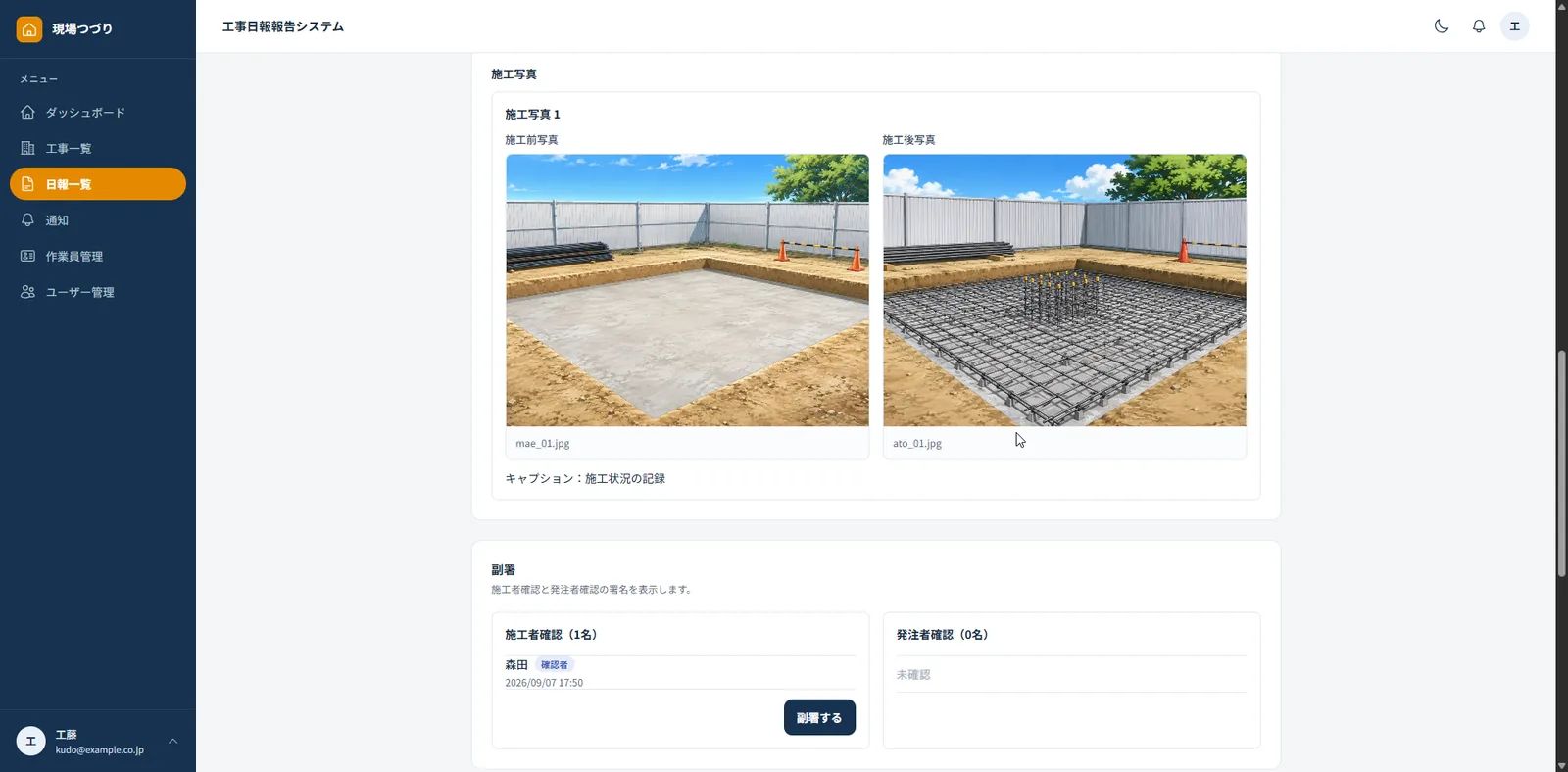
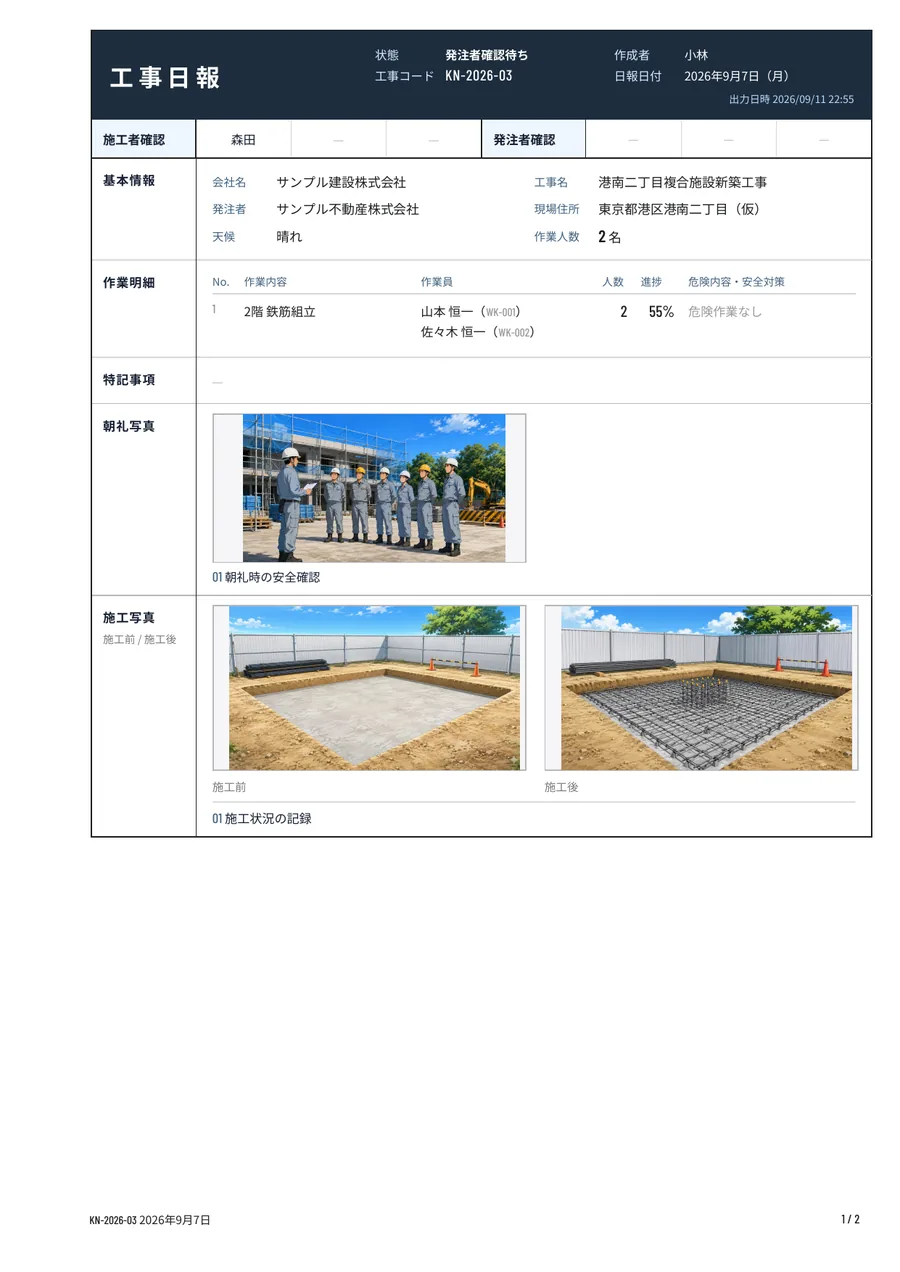
- 01Enter on site, photos includedWork is recorded in up to five detail lines. Up to two morning-meeting photos, and before / after photos in pairs, up to five pairs.
- 02Head count counted for youThe number of workers for the day is counted from the named workers on the report. No bare numbers, no unnamed "others".
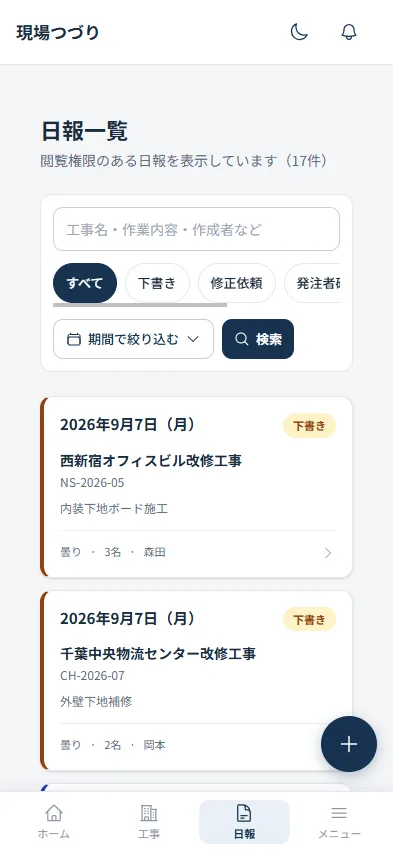
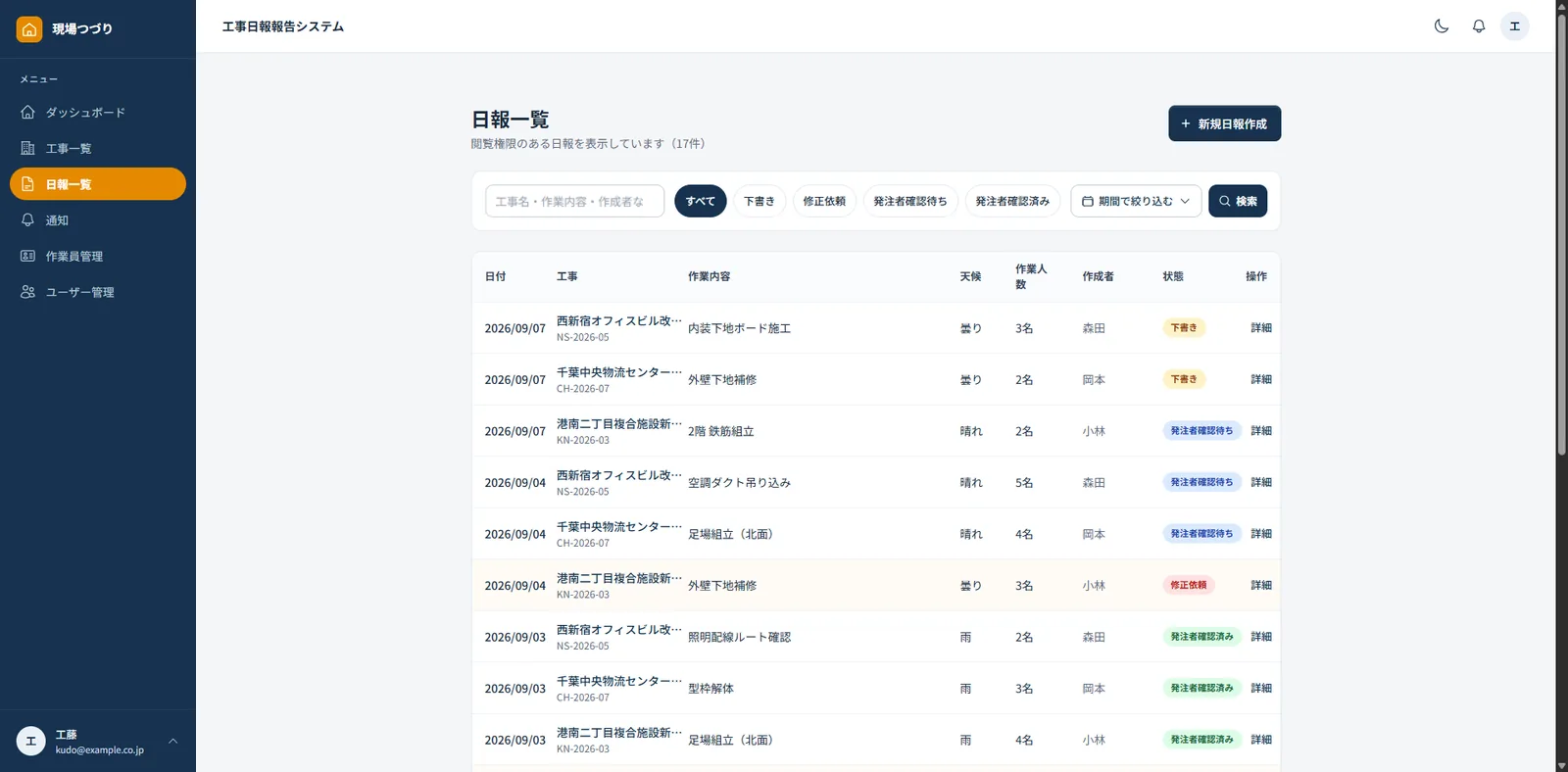
- 03From draft to client approvalDraft → internal review → client approval. The list shows which stage each report is at, and anything that needs work can be sent back as a change request.
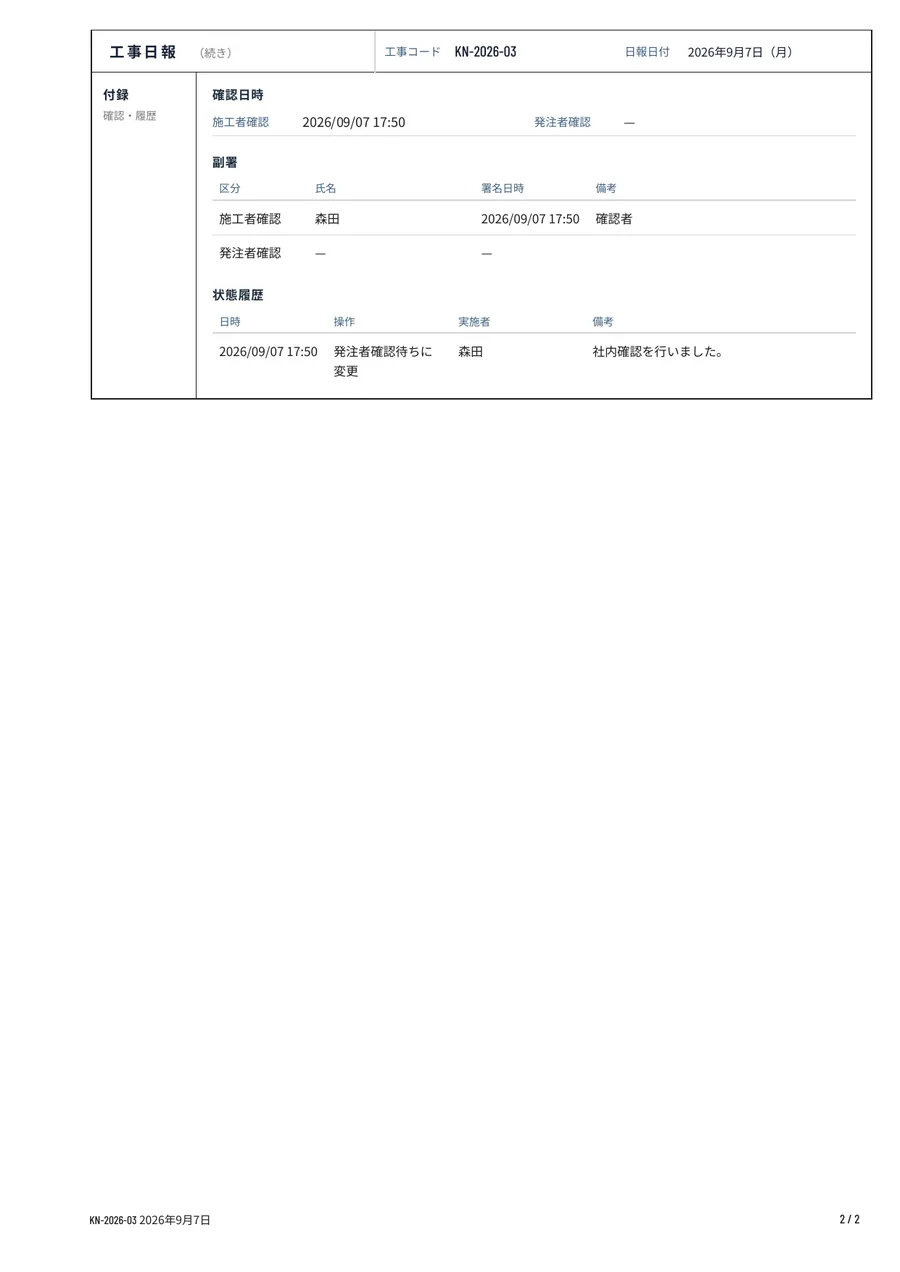
- 04Who confirmed, and whenInternal and client confirmation each record up to three people. Every change of status is kept in the report's confirmation history.
- 05Forms exported as PDFExported in the standard drawing-frame layout, with an appendix carrying confirmation times and the status history.
- 06Your client can see it tooIssue a client account per project. Clients see and approve only the reports for the projects they have been given access to.
Screens
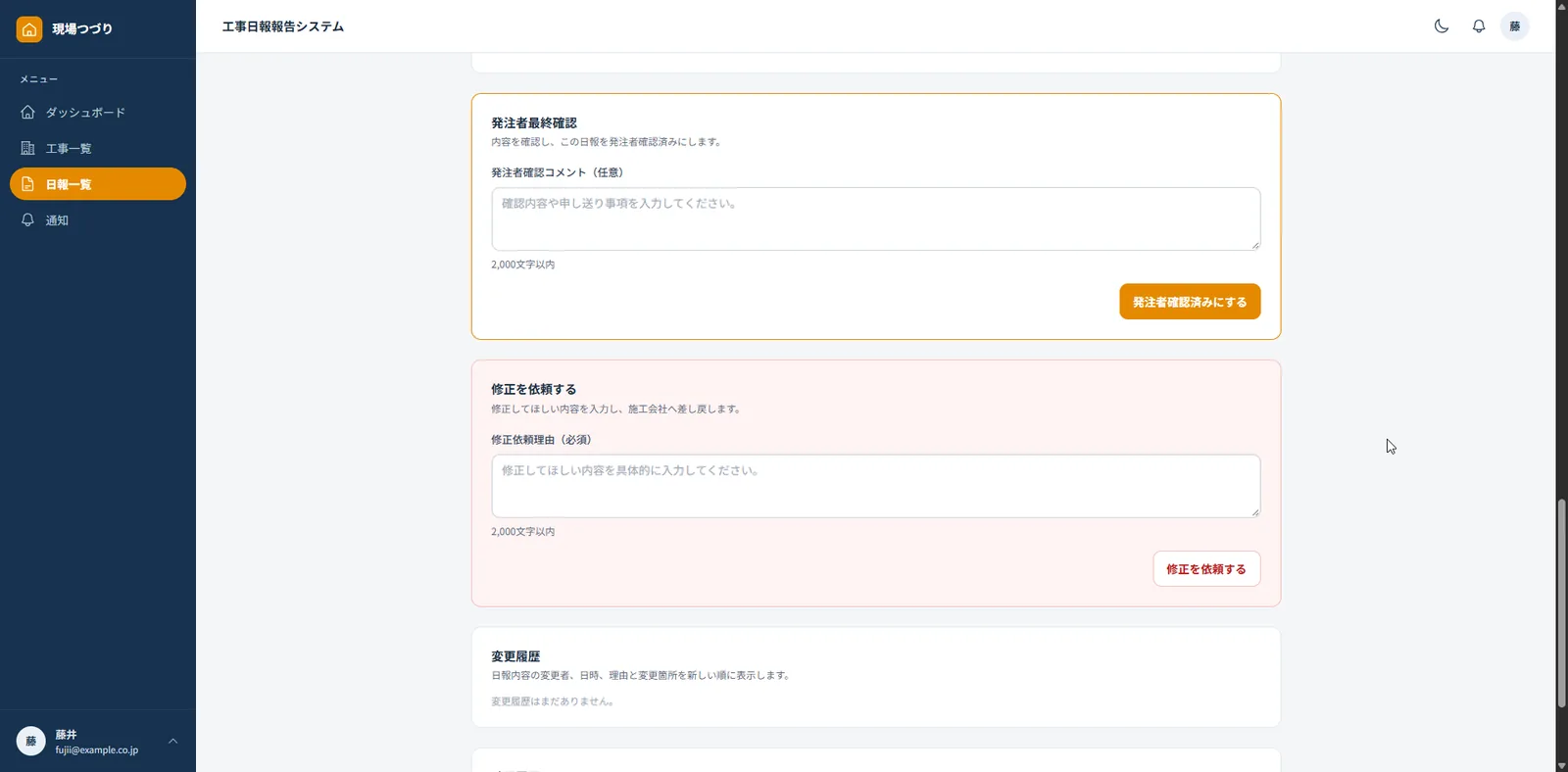
The actual screens, as they are.
These are live screens. The company names, project names and people shown are samples.
A day in the flow
From the site to the office, in one line.
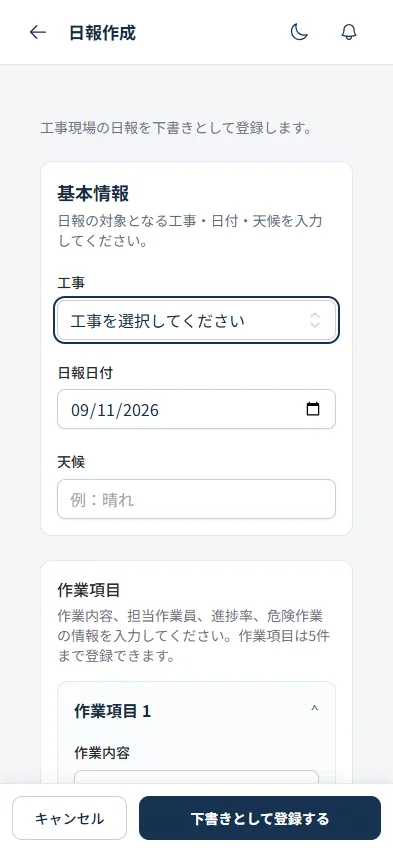
- 1Enter on siteRecord the work and the workers from a phone, attaching morning, before and after photos on the spot.
- 2Review in the officeA person in the office checks the content and confirms it internally, sending it back if anything needs changing.
- 3Over to the clientThe report moves to awaiting client approval, and the client reviews it from their own account.
- 4ApprovedOnce the client approves, the status changes and the time of approval is recorded.
- 5Kept as a recordExport as PDF to file or submit. Afterwards it stays findable in the report list.
Before you start
Specifications
- Devices
- Phone, tablet and PC, in a browser — no app to install
- User types
- Administrator / general user / client. Each project has its own project manager and members
- Photos
- Up to 2MB each, up to 12 per report
- Forms
- PDF export (drawing-frame layout, appendix with confirmation times and status history)
- Interface language
- Japanese
- Support
- Inquiries handled in Japanese. Cloud operation and maintenance are provided under an SLA
- Pricing
- Quoted according to scale and requirements
Questions
While you are considering
Can it be used from a phone alone?
Everything needed on site is done on the phone. Review and PDF export work the same way on a PC.
Can our client see the reports?
You issue a client account per project. Clients can view and approve only the reports for the projects they have access to.
Can the form layout be changed?
A standard layout is provided. Adjusting it to your own form is handled case by case, once we understand what you need.
Can we try it first?
A demo is available. Get in touch and we will walk you through the actual screens.